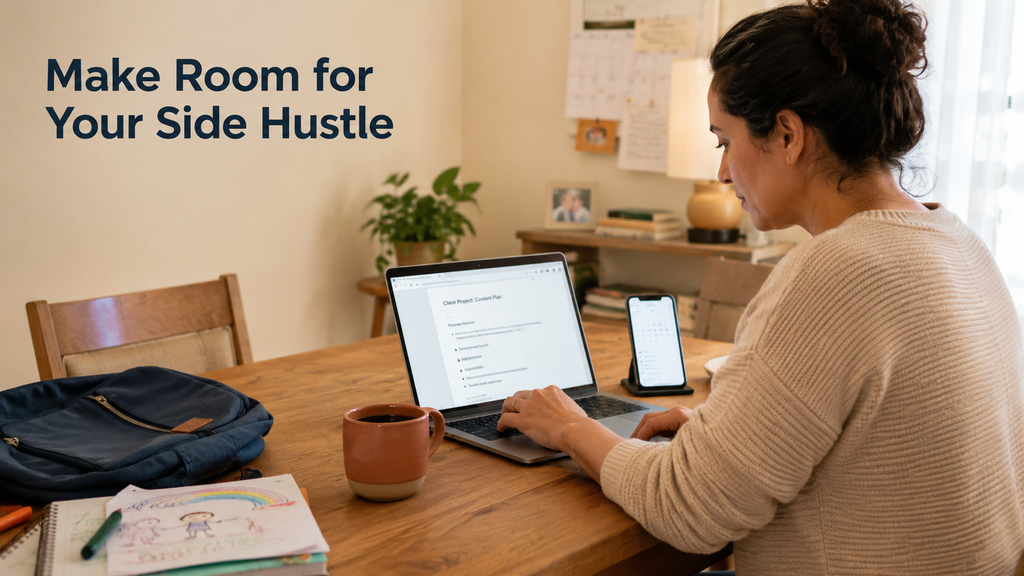
When a side hustle is new, most people use whatever is already open.
Client emails go to a personal inbox. Files land on the desktop. Video calls happen in the same browser used for school messages, online shopping, and everything else. There is not much to organize yet, so setting up a separate work system can feel a little premature.
Honestly, that makes sense. Who wants to spend half a day organizing a business before the first job has even appeared?
The mess usually becomes visible when a client finally arrives. They send a Google Docs link, but your browser opens it with the wrong account. Their revised document ends up beside family photos in your personal cloud storage. Then you share your screen during a call and realize that school notices and shopping tabs are still open.
None of this is a disaster. It just makes already-limited work time harder to use.
Before the first client shows up, it is worth making a few small changes. The goal is not to make a new side hustle look like a large company. It is to stop work from spreading into every corner of your personal digital life.
Table of contents
Separate your email and browser first
If you only make one change, create an email address that you use for work and nothing else.
It does not need a custom business domain or an expensive email plan. A simple address that is easy to spell and clearly belongs to you is enough at the beginning. Use it when you register for freelance platforms, cloud storage, scheduling apps, and video meeting tools.
That keeps client revisions out of the inbox where you receive school announcements, store receipts, and family messages.
Next, create a separate browser profile for work. Chrome, Edge, and other major browsers let each profile keep its own accounts, bookmarks, history, and some settings.
This sounds like a small detail, but it removes a surprising amount of friction. Open the work profile and Google Drive is already signed in to the right account. Your calendar contains client meetings. Your regular tools and bookmarks are ready. You do not have to stop every time you open a file and wonder, “Which account am I using right now?”
When work is over, close the whole window. It is not a real office door, but it creates a much clearer stopping point than leaving personal and client tabs mixed together all day.
Your file system only needs to work next week
Some file-management advice sounds as if you are organizing a national archive. A new side hustle does not need that much structure.
Four folders are a perfectly good start: Clients, Admin, Templates, and Archive. Give each client a folder inside Clients. Keep their notes, drafts, reference material, and finished work there. When the project is done, move the whole folder to Archive.
The habit that matters most is not naming every file “final.” If a client asks for last week’s version, files called final, final-2, and final-new will not be much help.
Add a date or version number instead:
Website-copy-2026-08-31-v2.docx
Do not spend too much time designing the perfect naming system. If you can understand the name next week and find the file from another device, the system is doing its job.
Before sharing anything, check the permission one more time. Are you sending one document, or did you accidentally open the entire client folder? When you are unsure, send the link to your personal email and open it in a different browser. That test takes less than a minute and is much easier than trying to pull back access later.
The account you really cannot afford to lose is your work email
If someone gets into your work email—or if you lock yourself out—other accounts can quickly become a problem too. Password resets, sign-in alerts, meeting invitations, and shared documents usually lead back to that inbox.
Do not protect it with an old password that you have already used elsewhere. Let a password manager create and save a unique one. Then turn on multifactor authentication, which asks for another form of confirmation in addition to the password. That might be a prompt on your phone or a code from an authentication app.
It adds a few seconds to some sign-ins, but that is easier than trying to recover several connected accounts later. If you only have the patience to set it up on one account today, start with your work email. The US Cybersecurity and Infrastructure Security Agency also recommends multifactor authentication as a basic way for small businesses to protect important accounts.
While you are there, check the recovery email and phone number. Save any one-time recovery codes somewhere safe, but not only on the same phone used for authentication. A screenshot stored on a missing phone will not be very useful.
Public Wi-Fi does not need a horror story
For a parent, work does not always happen at the same desk. It may happen at the kitchen table, in a library, or in a coffee shop near a child’s lesson or appointment.
Public Wi-Fi is not quite as terrifying as some online warnings make it sound. Most websites now use HTTPS, which encrypts information moving between your device and the website. The Federal Trade Commission says that widespread encryption has made public Wi-Fi usually safer than it was in the early days of the internet. Its current advice places more emphasis on updated devices, strong passwords, two-factor authentication, and recognizing fake websites.
That does not mean connecting without looking. Ask for the correct network name instead of choosing the first one that looks familiar. Turn off automatic connections to unknown networks. If the work is especially sensitive, your phone’s hotspot may be the better option.
If you regularly work on unfamiliar networks, a free VPN can add encryption between your device and the VPN provider. Just do not treat it like a magic shield. It cannot make a fake website honest, stop you from giving a password to a scammer, or prevent you from opening a harmful attachment.
The useful part is having a routine: confirm the network, glance at the website address, connect the tools you use, and then sign in to work accounts. A routine is more reliable than suddenly wondering whether you should be more careful today.
Pretend to be your own first client
Once everything is set up, do not simply look at it and assume it works. Spend ten minutes walking through the experience from the other side:
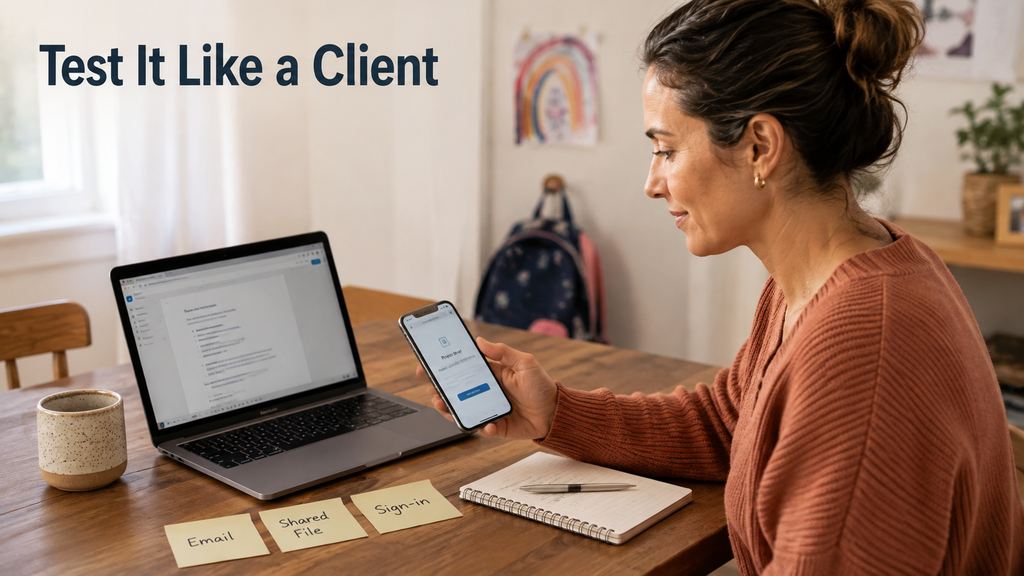
- Send a test message from your work email to your personal inbox.
- Create a test document and share only that document, not its whole folder.
- Open the link on your phone or in another browser to see what the recipient sees.
- Test the password-recovery process and make sure authentication codes arrive.
- Switch to another network and open your usual cloud storage and meeting tools.
- Remove the sharing permission and delete the test file when you are done.
You may discover that your video meeting account still displays a personal nickname. The shared file may ask the recipient to sign in with the wrong Google account. An important bookmark may exist only in your personal browser.
Fixing those problems now takes a few minutes. They feel much bigger when a client is waiting while you search for a file, reset a password, and deal with everything else happening at home.
It does not need to look impressive. It needs to survive a real day
A new side hustle does not need a project-management platform, a corporate email system, and a long security policy on day one. Setting up too much at once can create a system that feels like another job to maintain.
A work email, a separate browser window, one predictable place for files, and basic protection for the accounts that hold everything together will prevent much of the everyday confusion.
The best work system is not the most complete one. It is the one you still use when your day keeps getting interrupted. When the first client arrives, your limited work time should go into doing the work—not searching your personal inbox and Downloads folder for something you saved five minutes ago.