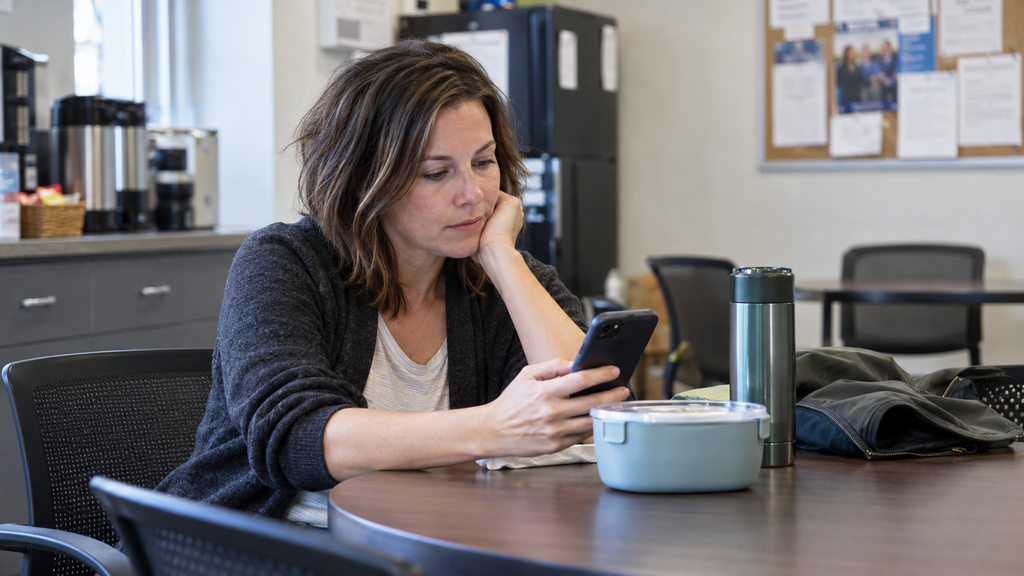
It’s 4:15 on a Tuesday. Your kid got home twenty minutes ago, you’re still at work, and the tablet is probably already out. No guessing needed about what’s on the screen: YouTube.
One Minecraft video leads to the next recommendation, and by the time you walk in, the homework is still in the backpack. Or there’s a new favorite creator with strong opinions on what to wear and what to buy. Most of it is probably harmless. But you’re not there to know, and that’s the part that nags.
You’re in good company. Pew Research Center’s 2025 survey found that about 90% of U.S. teens use YouTube, and roughly three in four use it every day. The same survey asked parents about screen time. About four in ten said they could be doing better, and 58% said they’re doing the best they can.
You can’t quit your job to babysit a screen, and you shouldn’t have to. When no other adult is home to say “time’s up,” the rules need to work without you in the room. Three steps get you there, starting with the cheapest one: a conversation.
Step 1: Agree on the rules before they start watching
Clear house rules give both of you something to lean on when you’re not home. The best time to set them is before a first phone or tablet gets handed over. If that moment has passed, pick a calm evening and start from there.
Let your child know that you’re happy for them to enjoy YouTube, within limits. You could say:
“I’m okay with you watching after school. Let’s agree on when you can watch and when it’s time to stop. What do you think would work?”
Listen to what matters to them, then keep the agreement short:
- When: Homework and agreed chores come before entertainment. Make a separate arrangement for videos they need for school.
- How long: You might start with 45 minutes on school days, taking gaming and other screen use into account. Treat this as a trial, then review it together after a week. Adjust it around homework and sleep.
- Where: Watch in the living room or kitchen, with devices outside the bedroom overnight. Include the TV and family laptop in the agreement.
- What they share: Keep their school, address and location private. Agree what needs checking with you before they post a video or share pictures.
- When something feels wrong: Close the video and contact you—or an agreed trusted adult if you’re unavailable. Say clearly: “You won’t be in trouble for asking for help. We’ll look at what happened together.”
Write the rules somewhere easy to find, whether that’s a fridge note or a family group chat. Agree in advance what happens if a rule is repeatedly ignored, and choose consequences you can reasonably follow through on.
If your child also spends time at their dad’s, a few shared boundaries can help. We’ll come back to coordinating those below.
Step 2: Switch on the free controls first
YouTube offers a few parental control options you can start with. Here’s how to choose a setup that works for your child, along with device settings to help manage viewing time.
If your kid is under 13
YouTube Kids is a solid starting point for younger kids. It has age-based content settings, an “approved content only” mode for hand-picking videos and channels, and a built-in timer that locks the app when time is up. A kid who has outgrown it can move to a supervised account on regular YouTube, set up with Google’s free Family Link app. You decide how much of YouTube they can see, and autoplay can be switched off.
None of it is foolproof, and unsuitable videos do slip through. Check their favorites together now and then, and make sure they know to come to you if something bothers them.
If your kid is 13 or older
YouTube’s Family Center lets you and your teen link your accounts. Both of you must agree, and either can end supervision.
Once linked, you can see activity counts, including uploads, comments and subscriptions, and receive emails when they upload a video or go live. You can also set break and bedtime reminders, plus a daily Shorts feed limit. That limit applies to scrolling Shorts, rather than all YouTube viewing.
Make the stopping time automatic
Linking accounts through Family Center doesn’t automatically set a time limit on your child’s phone. For that, check the device controls:
- Android phone or tablet: If your child’s Google Account is supervised through Family Link, you
can set daily device limits, scheduled downtime and limits for individual apps. Family Link also offers device time limits for Chromebooks.
- iPhone or iPad: Use Apple’s built-in Screen Time to manage app use and when apps are available. Family Link’s device time controls don’t cover iPhones or iPads.
Set these up together, then check whether they’re working during a normal school week.
Step 3: Get some backup for the hours you’re away
The free tools set the rules. What they don’t show you much of is what your kid is actually watching while you’re at work. If you’d like that, or an alert when something specific comes up, a paid parental control app is one way to get it.
One option is AirDroid Parental Control, which runs from your own phone. Plans start at $9.99 a month, and a free trial lets you test it on your kid’s device before you pay. If Steps 1 and 2 are doing the job, you may not need it yet.
For a one-adult household, here’s where it helps.
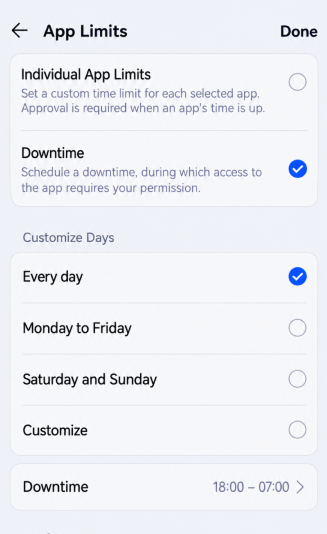
Bedtime without the argument: Set a daily YouTube limit, pick the hours it’s available (after homework, say), and have YouTube and other video, social or entertainment apps lock at bedtime. The app says “time’s up” so you don’t have to, even when you’re stuck working late. Weekends can run looser, since kids deserve a chance to unwind. AirDroid’s schedule feature lets you set a different plan for Saturday and Sunday ahead of time, so there’s no resetting the rules every Friday.
Get alerts about the concerns that matter to you:If you’re worried about particular topics, such as bullying or drugs, you can set keywords and receive an alert when matching terms appear in supported YouTube activity.
On Android, keyword alerts cover supported searches, viewing and posting activity.
On iPhone or iPad,they flag matching words in the titles or descriptions of supported videos synced through your child’s linked Google account.
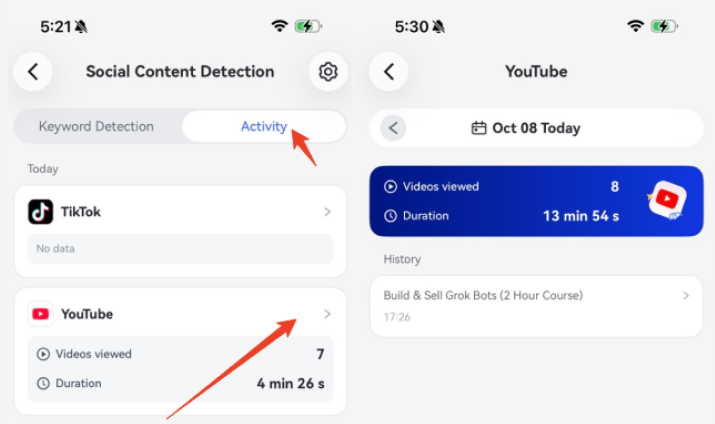
Review how YouTube fits into their afternoon: The activity summary shows how much time your kid spent on YouTube. On Android, you can also see their searches and viewing history. On iPhone or iPad, you link your kid’s Google account to see videos they’ve liked or posted and new uploads from channels they subscribe to. That’s a look at their interests, not a full viewing history.
Once a week, spend a few minutes looking at the activity together. Ask about a creator they like or try: “What’s the best thing you watched this week?” A new upload from a subscribed channel doesn’t necessarily mean they watched it, so let them fill in the details.
Before installing anything, tell your kid what you’ll be able to see, why you want it and when you’ll look. Test the settings together while you’re home so nobody gets surprised. Then pick one evening a week for a few minutes with the activity and ask: “What’s the best thing you watched this week?” It’s a safety net, not a guarantee. To see more of what AirDroid does with YouTube, check out its YouTube parental controls page.
When your child stays at their dad’s
“But Dad lets me watch it” may come up when it’s time to put the tablet down. Different rules can be frustrating for your child, especially if the same device travels between homes.
If it’s workable, talk to their dad about a few basics, like no YouTube at bedtime and a quick check before anything gets uploaded. The daily allowance doesn’t have to match exactly. Knowing what to expect at each house makes the handoffs easier. If he’s on board, AirDroid lets you invite other parents or guardians to manage the same kid’s device, with a built-in family chat for quick check-ins. Everyone you add can see the activity and the rules, so invite only someone you trust to stick to them.
If he’s not on board, keep your own rules clear and calm: “I know you can watch longer at Dad’s. Here, YouTube stops at eight.” Whatever needs to change between the two houses is a conversation for the adults, so keep your kid out of the middle. They can tell you how they feel without having to negotiate between the two of you.
What to do if something upsets them
Even with good settings, something will eventually upset your kid. Start with: “Thanks for telling me. What happened?” Then give them time to explain, and make it clear that asking for help won’t land them in trouble.
Pause the viewing while you work out what happened, and ask how the video showed up without blaming them. Depending on what it was, you might adjust a setting, block the video or channel where the account allows it, or report it for breaking YouTube’s rules.
If your child remains distressed, their school counselor or pediatrician can help you find support. Unwanted sexual messages, threats or suspected exploitation need a prompt response. Report concerning contact to the platform; suspected child sexual exploitation can also be reported through NCMEC’s CyberTipline. If there’s immediate danger, contact emergency services.
Start with tonight
At 4:15 tomorrow, you may still be at work. But with some support in place, you can feel more at ease about your kid’s YouTube use while you’re away.
There will probably still be requests for “just one more video.” Clear boundaries and some backup can make those moments easier to handle. When you’re the only adult in the house, a little less chasing and reminding is a worthwhile result.
You don’t have to do it all this week. Tonight, ask your kid what rules they think would be fair. That’s Step 1, and it costs nothing.